
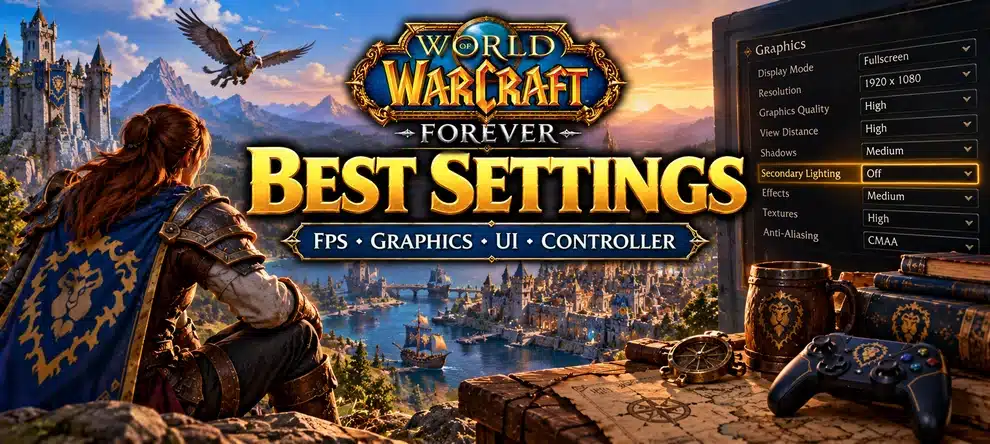
The best WoW Forever settings start with a stable image, not the highest graphics preset. Use your monitor’s native resolution and 100% Render Scale as a baseline, lower Secondary Lighting if movement causes stutter, keep important ground effects visible, and build a clean interface with Edit Mode. If you play on a controller, enable the built-in Gamepad UI before arranging its action bar.
This guide covers practical graphics profiles, FPS troubleshooting, PvP and dungeon readability, and native gamepad controls. It reflects Blizzard’s 2026 beta changes and player testing before the planned November 4, 2026 launch. The beta closed October 23; these are testable starting points, not measured FPS guarantees for the final client. Check the actual menu in your launch build because names and availability can change.
Best WoW Forever Settings in 10 Minutes
- Choose the right display: in Options, open Graphics, select your monitor, use its native resolution, and begin with 100% Render Scale. Do not confuse Render Scale with UI Scale.
- Pick a reasonable baseline: start with a medium or balanced graphics preset. Keep Projected Textures enabled so important ground visuals can remain visible in group content.
- Check Secondary Lighting: if the game freezes when moving, turning the camera or entering a busy area, lower this one option by a step and repeat the same movement. More than one beta player reported a clear difference, but it is not a universal fix.
- Control unnecessary load: use a frame cap your system can sustain; compare shadows, environmental effects and anti-aliasing one at a time. Test a lower Render Scale only if you suspect a GPU limit.
- Make combat readable: arrange target, cast bar, player/party frames and action bars in Edit Mode. Try the built-in Cooldown Manager before installing another full combat-interface package.
- Set up your input: put movement and frequently used abilities where you can reach them. Controller players should activate Gamepad UI before saving a gamepad-specific Edit Mode layout.
- Test two scenes: one quiet outdoor route and one crowded area or dungeon-like combat scenario. Keep the settings that help both rather than chasing a single high FPS screenshot.
Quick choice: for most players, a balanced preset with reduced Secondary Lighting and clear party frames is the sensible first test. A low-end laptop should prioritize a stable frame rate; a high-end PC can increase textures and draw distance only after the busy-area test feels smooth.
Choose Your Next WoW Forever Step
Once the game runs comfortably and your controls feel natural, decide what you want to do in Azeroth. These are optional next steps, not fixes for FPS or controller problems.
Four Practical Settings Profiles
These are editorial starting points. They are not official Blizzard presets, and no one has established one universally fastest configuration for every CPU, GPU and client update. The goal is to make the first comparison easy and reversible.
| What you want | Start here | Test next |
|---|---|---|
| Low-end PC or laptop | Native screen resolution, medium/low preset, Secondary Lighting reduced, moderate shadows, reasonable FPS cap, unnecessary background programs closed. | If the GPU appears limited, compare 100% versus 90% Render Scale and inspect text, characters and moving edges. If FPS barely changes, restore 100% and investigate CPU or client issues. |
| Balanced leveling | 100% Render Scale, medium/high textures if memory allows, moderate shadows and lighting, Projected Textures on, visible quests and target frame. | Try an extra visual effect only after checking an outdoor route and busy town. Keep a compact quest tracker and avoid duplicated minimap addons. |
| PvP and dungeons | Clear enemy nameplates, visible cast bars, legible party frames, stable cap, moderate effects, Projected Textures on, no giant action-bar stacks. | Test crowd fights and spell effects. Reduce distracting bloom or unrelated visual clutter before sacrificing information needed to react. |
| Visual quality | 100% Render Scale, higher textures and view distance, HD or SD models to taste, richer shadows and effects only where smooth. | Raise expensive options one at a time. A good-looking forest is not proof that crowded capitals will stay smooth. |
What about 60, 120 or 144 FPS? A cap is a control, not a promise. If a laptop moves between 45 and 70 FPS, a modest cap around its reliably sustainable range is more useful than asking for 144. If the client falls well below the cap, lower the settings causing the spikes or investigate the underlying bottleneck. On a high-refresh display with VRR, compare your monitor and driver recommendations; no single V-Sync choice is best for every setup.
Which Graphics Settings Actually Matter?
| Setting | Useful baseline | When to change it |
|---|---|---|
| Display Mode and Resolution | Choose the intended monitor and native resolution; use Windowed or Windowed Fullscreen as offered in your build. | Check Windows display and monitor selection if the picture is stretched, blurry or appearing on the wrong display. Do not assume a hidden exclusive-fullscreen mode exists. |
| Render Scale | 100% first. | Compare 90% or 80% briefly if the GPU is busy and you need more headroom. Revert if it mostly makes the world blurry. |
| Secondary Lighting | One notch below the highest setting when diagnosing stutter. | Prioritize this if moving or turning triggers severe drops. Test the same scene twice; results depend on build and hardware. |
| Shadows and ambient effects | Moderate. | Lower when turning toward buildings, lights or many players hurts smoothness. Watch whether the new value affects visibility. |
| Anti-aliasing | Compare a less expensive image-based option with the alternatives the game offers. | MSAA may cost more GPU time. Test while moving past fences, leaves and roofs instead of looking only at a still image. |
| Texture quality / filtering | Keep textures clear if your memory budget allows; anisotropic filtering is worth comparing. | Lower textures when memory pressure or area-loading hitches make them a plausible suspect; do not assume textures are responsible for every FPS drop. |
| Projected Textures | On for PvE and PvP visibility. | Do not remove important ground warnings simply to gain a few frames. Test readability in actual combat. |
| Bloom Intensity | Reduce if spell effects obscure targets or the scene feels too bright. | Blizzard moved this slider into Advanced graphics in its October 15 update, so older menu instructions may be wrong. |
| Foreground/background FPS limit | Set an intentional cap that suits your monitor and cooling. | Check these first if FPS is stuck at a suspicious fixed number or changes as soon as the window loses focus. |
Do not follow old Ray Traced Shadows instructions. Blizzard removed that option in the October 1 beta update while its functionality was being repaired. The same development thread notes later bloom and fog adjustments. Likewise, an old console command that removes fog is not a safe substitute for an available graphics setting: Blizzard removed a setting that unintentionally disabled fog. See the WoW Forever development notes.
Render Scale Is Not UI Scale
Render Scale changes the number of pixels used to draw the 3D world before it reaches your screen. Reducing it can improve performance when the GPU is the constraint, at the cost of softer scenery. UI Scale changes the size of bars, text and frames. If quest text is too small, increase interface readability rather than reducing world-render resolution.
Some available Resample Quality menus refer to FidelityFX Super Resolution. Treat it as the specific resampling option shown by your build, not proof that Forever supports DLSS, modern FSR 3 frame generation, or every upscaler available in Retail. Do not apply another WoW client’s graphics presets without checking the Forever menu.
Classic or Modern Visuals? HD or SD Models?
WoW Forever supports modern and Classic presentation choices alongside HD and SD character models. Choose the visual style you enjoy. HD models add character detail; SD models preserve a more familiar presentation. Neither choice is a guaranteed cure for low FPS, and selecting a Classic look does not roll back every Forever lighting, water or weather change.
If you are comparing model options, stand in the same place, keep the camera distance constant, and look at animation, armor and legibility. A preference for old animations or SD faces is a style choice, not a PvP advantage proven by client data. Blizzard confirmed the separate presentation choices in its Forever overview.
How to Fix Low FPS, Stutter or Freezes in WoW Forever
A fast average FPS does not necessarily mean smooth gameplay. The frame may arrive late when the camera turns, a campfire effect loads or a busy town comes into view. A September and October cluster of Forever beta reports identified Secondary Lighting as a particularly useful setting to test, but other players saw no improvement. Use this repeatable sequence rather than copying an untested stack of console commands.
- Record a baseline. Turn on an FPS display if available (Ctrl+R commonly toggles the game’s FPS counter), note the location and your current cap, then follow a short route and turn the camera several times.
- Change only Secondary Lighting. Lower it one level, repeat the same route, and compare the severity of pauses as well as the FPS. If nothing changes, restore your preferred look and move on.
- Test Render Scale. Compare 100% and 80%-90% under the same cap. A major improvement suggests graphics workload matters; negligible change makes a CPU, addon or client issue more plausible.
- Check frame limits and V-Sync. A 30-FPS cap or background-window limit can imitate a performance failure. Use the expected display refresh and test the actual setting rather than guessing.
- Try a clean addon test. Disable nonessential addons temporarily and compare the same scene. If that helps, re-enable them in small groups; do not blame an addon before you test without it.
- Check drivers and the client build. Finish the Battle.net update, use a compatible graphics driver, and close overlays or resource-heavy apps for a comparison. On laptops, confirm that the intended GPU and a suitable power mode are active.
- Reset only as a last resort. Back up the current settings and addon configuration before resetting anything. A temporary rename of this Forever installation’s
Cache,InterfaceandWTFfolders can distinguish broken UI state from game problems, but it also resets layout and addon preferences. Never delete another WoW installation’s folders by accident.
If the game will not open its graphics menu: Blizzard also documents a Battle.net reset for incompatible in-game options: select the game in Battle.net, use the cogwheel beside Play, open Game Settings and choose Reset In-Game Options. This changes your preferences, so try it only when normal menu troubleshooting is unavailable or unsuccessful. Do not make Config.wtf read-only as a first-line fix.
Community test, not a benchmark: one October 23 beta tester recorded better frame pacing after reducing Secondary Lighting and using an FPS cap, but their comparison captures had different lengths and slightly different conditions. That supports testing the option; it does not justify a universal FPS percentage or guarantee. See the original CapFrameX report.
Quick Troubleshooting by Symptom
| What happens | First useful check | What not to assume |
|---|---|---|
| High average FPS but short freezes while moving | Secondary Lighting, frame pacing and effects; compare the same path. | That all addons or the GPU are broken. |
| Low FPS everywhere, little change when Render Scale drops | FPS cap, CPU-heavy scene, driver and current client issue. | That a faster video card must solve it. |
| Only crowded towns or group fights are slow | Player density, relevant spell effects, nameplates and CPU workload. | That an empty-zone benchmark describes raids. |
| World actions respond late but FPS stays normal | Network latency, routing and server status separately from graphics. | That lowering shadows fixes a network problem. |
| Crash, black screen or driver timeout | Driver update, safe/default graphics, Secondary Lighting comparison, client repair and official support. | That editing hidden CVars or making config files read-only is a permanent fix. |
| UI breaks after changing input mode or addons | Check the active Edit Mode layout, disable overlapping UI addons, then consider a backed-up UI reset. | That gamepad support has no native layout controls. |
Best UI Settings for Leveling, Dungeons and PvP
The biggest UI win is reducing eye travel. You should be able to see your target’s cast, your own cooldowns and your character’s health without losing sight of the fight. You can do this in native Edit Mode before installing a new interface package.
Leveling and Solo Play
- Place your player and target frames near the action without covering the ground beneath enemies.
- Keep a compact quest tracker visible but do not let its text cover the right half of the screen.
- Group frequently pressed spells on a primary bar, utility spells on a secondary bar, and rarely used travel or profession actions away from combat.
- Turn on the built-in Cooldown Manager if it helps you follow key abilities. Check the entries it displays instead of assuming every consumable is tracked.
Dungeon, Tank and Healer Layout
Enable clear party frames, keep debuffs and health changes readable, and place your target cast bar where interrupts and defensive reactions are easy to notice. Tanks benefit from visible target/focus information and threat awareness; healers need compact but legible group health. Test the layout with a group before copying it into a crowded raid scene.
Projected Textures and readable nameplates matter more than cosmetic perfection. Avoid stacking a full UI overhaul, nameplate replacement, extra cooldown tracker and duplicate damage meter without first checking which features Forever already ships. Our WoW Forever Addons Guide owns the decision about which compatible third-party tools to install.
PvP Visibility and Targeting
Keep enemy cast bars and target information prominent, raise chat readability enough to catch group calls, and place interrupts or defensive abilities on comfortable binds. More glow is not always better. Reduce distracting bloom when it hides animation cues, and avoid placing large overlays where you need to track enemy movement.
Best WoW Forever Controller Settings
Unlike older Classic versions that relied heavily on community solutions, WoW Forever includes an official Gamepad UI. Blizzard still labelled relevant menus Gamepad (Alpha) during beta, so feature details may change for launch. Set up the built-in interface before trying a third-party controller overhaul.
- Connect the controller first. Confirm Windows or your platform recognizes it, then start the Forever client. In Options, find the Gamepad section and enable the Gamepad UI.
- Open Edit Mode after enabling Gamepad UI. Choose the gamepad layout and place the action bar where you can see it while moving. Different UI types have their own saved layouts in the October 8 beta update.
- Find the Gamepad Action Bar settings inside Edit Mode. Select the bar and choose whether Use Compact Action Bar makes combat clearer. Older guides telling you to set this only in the normal Gamepad Options menu are out of date.
- Test Fixed Party Targeting if you heal or assist in five-player content. Check whether directional inputs select the intended party members, then practice out of combat.
- Review class-specific flyouts. Druid forms, Hunter and Warlock pet commands, Paladin auras and Warrior stances have supported gamepad presentations. Put your critical combat actions on reliably reachable inputs rather than depending on an untested modifier scheme.
- Practice real interactions. Try accepting a quest, selecting a reward, using an item that starts a quest, fishing, looting and entering a dungeon queue. Beta patches fixed several of these paths; a new build can change behavior.
- Switch carefully between controller and keyboard/mouse. Check the active Edit Mode layout and keybinds after changing UI type. Gamepad UI bindings had customization limits in beta, so do not assume that a normal keyboard rebinding will also remap the native gamepad action bar.
Controller limitation: there is no verified universal best button map. Pick one layout you can use consistently, test your class’s core rotation and defensive abilities, and confirm it still works after a relog. Blizzard’s October 8 and 15 development notes document Edit Mode, compact bars, party targeting and gamepad interaction fixes.
Can Your PC Run WoW Forever?
Before spending an hour tuning settings, make sure your graphics hardware is actually supported. Blizzard states that Forever requires GPU architecture from AMD GCN 1 (2012), NVIDIA Maxwell (2014) or Intel Skylake (2015), or newer, due to a required rendering feature. These are compatibility floors, not playable-FPS recommendations.
Blizzard explicitly lists Radeon HD 7850, GeForce GTX 750/750 Ti and HD Graphics 530 as examples of hardware meeting the graphics feature floor but falling below the published minimum performance specifications. Some numerically higher older GTX models, including GTX 760/770/780, are on the unsupported list because their architecture is older. Check the exact GPU model rather than reading the number alone. See the official GPU requirements.
On a laptop, first confirm the game uses the correct graphics adapter, has adequate cooling and is not running an unintended battery-saving profile. Do not treat the GPU feature floor as proof an older laptop will sustain 60 FPS in a city. The current client and crowded scenes may be the limiting factor even when basic hardware requirements are met.
Five Settings Mistakes That Waste Time
- Copying Retail guides as if they were Forever instructions. The clients are different, and some graphics toggles are missing or renamed.
- Changing every graphics option at once. You cannot identify the cause of stutter if you simultaneously edit lighting, scale, drivers and frame caps.
- Turning off ground-effect visibility. A prettier FPS number does not help if you cannot see hazards during a dungeon or PvP fight.
- Treating HD/SD models as a measured FPS preset. Their primary purpose is presentation. Check your own system before claiming performance gains.
- Using an addon or config tweak to fix a network problem. Stable frames and low latency are different goals; diagnose the correct one.
WoW Forever Best Settings FAQ
Which setting should I lower first if WoW Forever stutters?
Test Secondary Lighting one notch lower, then repeat the same movement in the same scene. Many beta testers reported fewer spikes, but your hardware and the launch build may behave differently. If nothing improves, restore it and continue with frame caps, render scale and a clean-addon comparison.
Does WoW Forever support DLSS or FSR 3 frame generation?
Do not assume so from another WoW client. Some beta settings list FidelityFX resampling, but that does not prove DLSS or modern FSR frame generation support. Use only the option actually shown by the Forever client and do not download unofficial graphics mods as a supposed requirement.
Can I play WoW Forever fully with a controller?
Blizzard announced official gamepad support, and its beta notes document dedicated UI, Edit Mode, party targeting and interaction improvements. The feature remained labelled Alpha during testing, so some controls and UI issues may remain. Practice your specific class and group actions before relying on it for demanding content.
Why is my FPS stuck at 30 or drops when I alt-tab?
Check the foreground and background frame-rate limits and whether the client thinks it is in the background. Also compare V-Sync and your monitor refresh settings. A deliberate cap is not the same thing as GPU overload.
Should I delete my WTF folder to fix a broken UI?
Not as a first step. Save a backup, disable suspect addons, and try the normal graphics and Edit Mode controls first. If a UI reset is necessary, rename the relevant Forever client’s Cache, Interface and WTF folders while the game is closed, so you can restore saved settings if the reset does not help.
Will the best settings change after November 4?
They may. Blizzard changed graphics and gamepad controls several times during the beta and also fixed a client memory leak. Treat this guide as a launch-preparation baseline and revisit settings after the retail release build or driver updates arrive.


